Add Events and Gates
Build the fault tree with blank or imported events and AND or OR gates.
Use the fault-tree tools
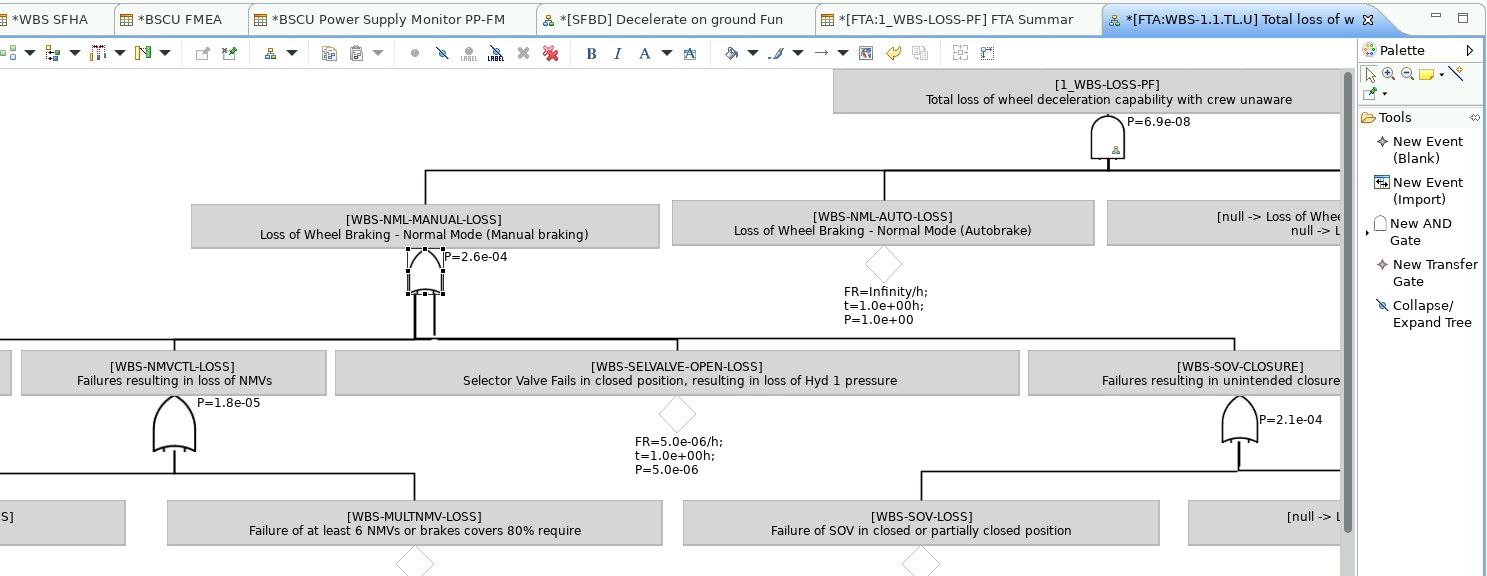
The diagram palette contains these tools:
| Tool | Purpose |
|---|---|
| New Event (Blank) | Create an event without an existing failure-element reference. |
| New Event (Import) | Import an existing failure element as an event. |
| New AND Gate / New OR Gate | Add a logic gate. |
| New Transfer Gate | Reference an existing FTA node. |
| Collapse/Expand Tree | Collapse or expand tree nodes. |
You can select a tool from the palette on the right or select a parent gate and use the contextual tool bar that appears beside it.
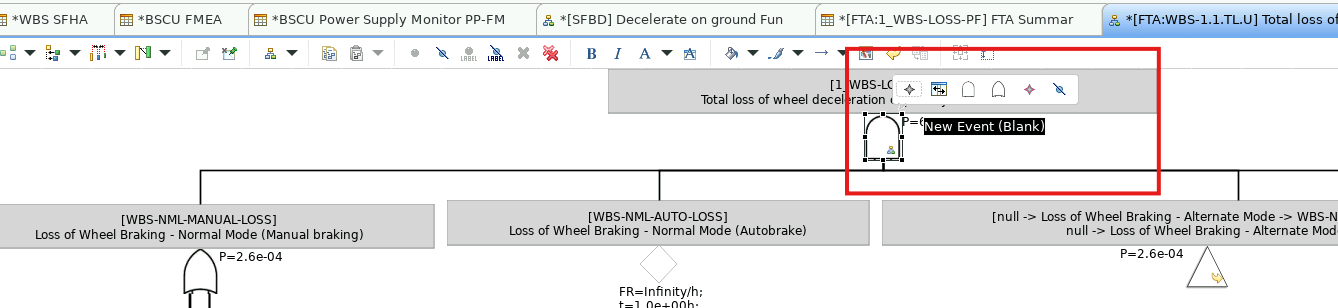
Create a blank event
- In the palette, select Tools > New Event (Blank).
- Drop the event on the required parent gate.
- Double-click the event.
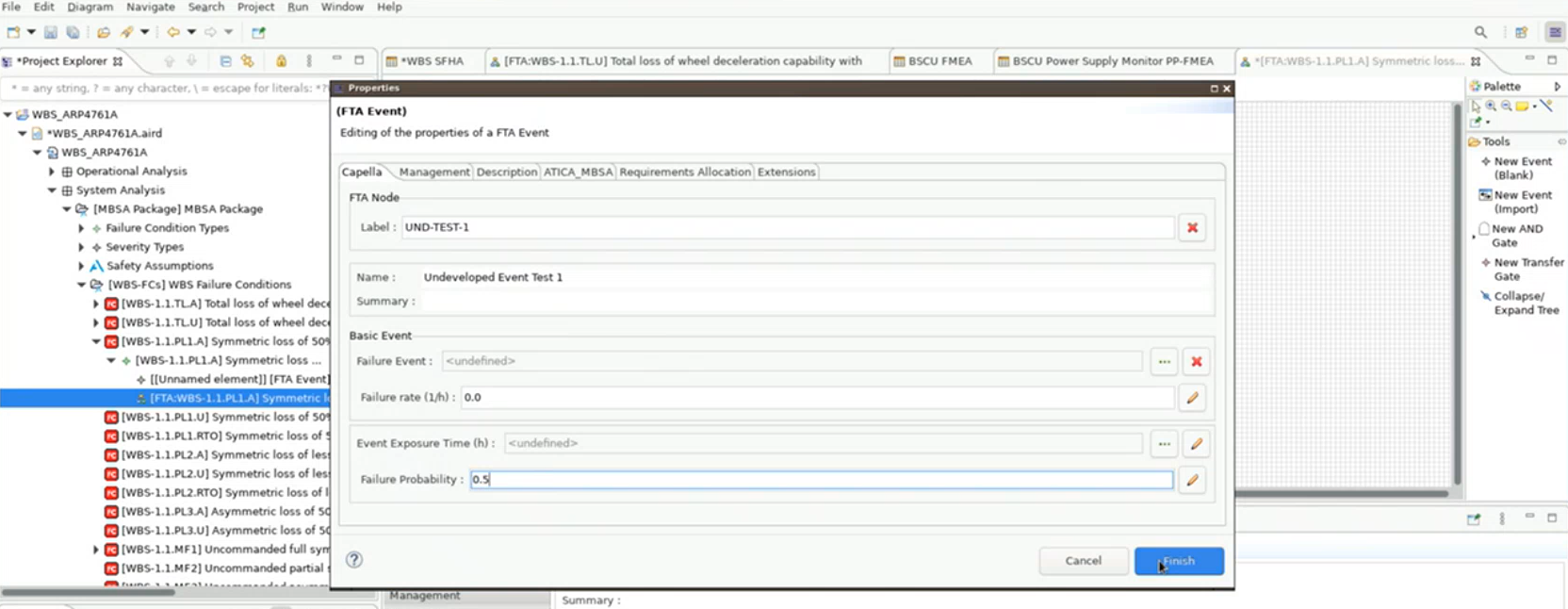
- In Properties, enter its Label, Name, and Summary.
-
Use one of the following input methods:
- Enter the failure rate per hour and select an event exposure time in hours. ATICA calculates the probability automatically.
- Enter a failure probability manually.
-
Select Finish.
Note
When failure rate and exposure time are set, ATICA calculates probability automatically. To fix a probability manually, first remove the exposure time or set the failure rate to zero.
Reuse exposure times
An exposure-time artifact must first be created for a single event. It cannot be created directly under an ATICA package.
To reuse an exposure time:
- Create or select the event that will initially own the exposure time.
- Open the event's Properties.
- Use the pencil icon beside the event exposure-time field to create one exposure-time artifact.
- Enter the exposure time in hours and finish editing the event.
- Move the newly created exposure-time artifact from the event to the corresponding ATICA package.
- In each additional event, select the existing exposure-time artifact from that package.
Note
Create the exposure-time artifact on an event before moving it. Creating it directly under an ATICA package is not supported.
Reference an existing failure element
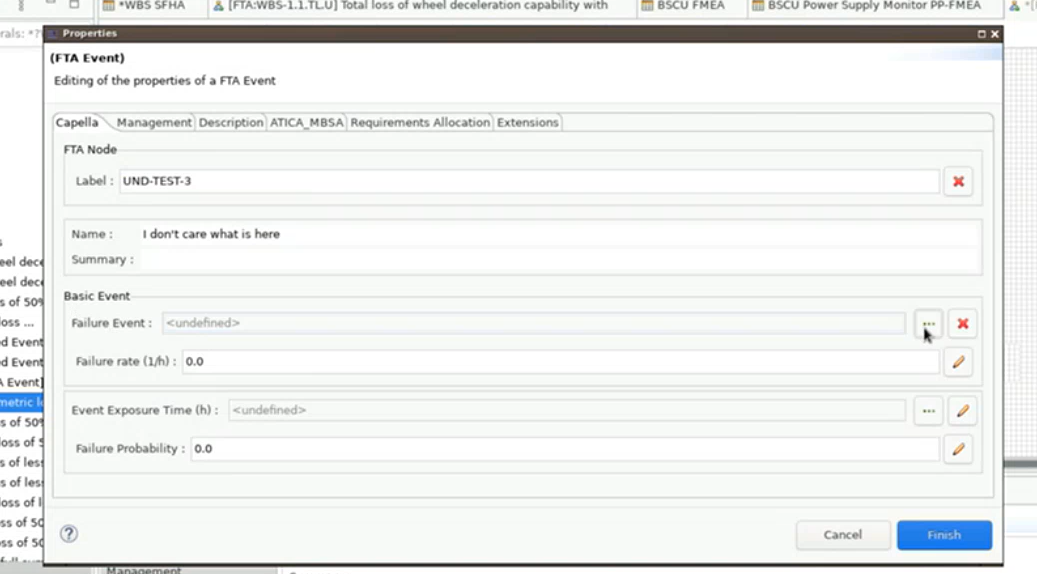
An event without a failure-element reference is represented as an undeveloped event. Adding a reference converts it to a basic event.
The referenced failure element can come from a different architecture layer than the fault-tree top event. For example, a tree for a System Analysis failure condition can use a Logical Architecture functional failure or a Physical Architecture failure mode as a base event.
- Create a New Event (Blank) on the required gate.
- Open its Properties.
- Under Basic Event > Failure Event, select the three-dot button.
- Select the required failure element.
- Set any required exposure time and select Finish.
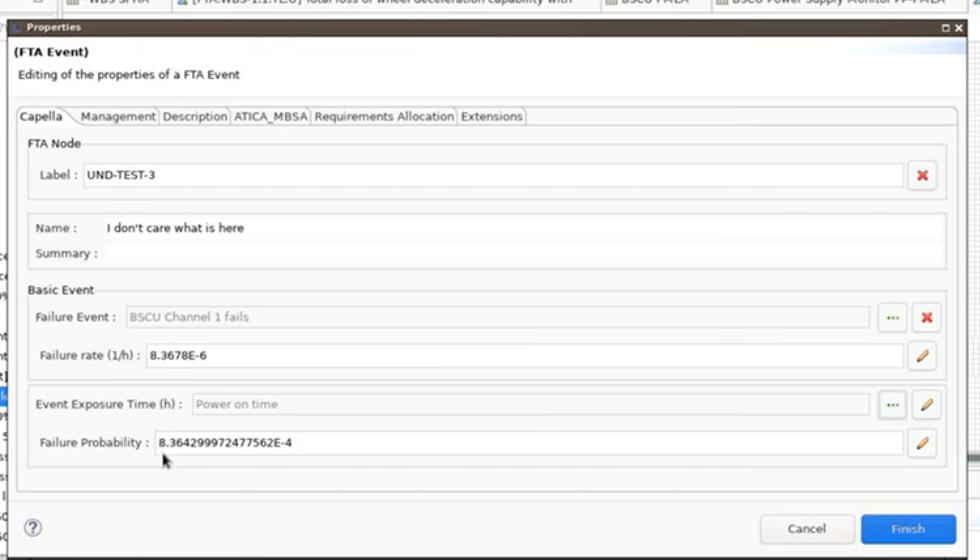
- Select New Event (Import).
- In the transfer dialog, select the failure element and select OK.
- In Properties, assign an exposure time if probability must be computed.
Warning
Referencing a failure element replaces the event's label and name. Its existing failure rate appears automatically when available. A manually entered rate overrides that value and may also override a future value from the referenced element.
Create a gate
- From the tool box, select New AND Gate or New OR Gate.
- Drop it on the required parent gate.
- Double-click the gate.
- Set its Label, Name, Summary, and Logic Type.
- Select Finish.
Note
Changing Logic Type in Properties can shrink the gate symbol. Resize the symbol manually if this occurs.